Before You Start
You must have two methods of authentication added to your work account. This confirms your identity when needing to unlock your account and ensures you still have access if one method of authentication is not available to you.
Click here to add or update your methods of authentication. We recommend using following methods of authentication:

Microsoft Authenticator
- MS Authenticator is the preferred default method of authentication.
- Most employees will already have access to the MS Authenticator app on their mobile phones through Connect2Work.
- If you do not, please click here to read how to download Microsoft Authenticator to your phone.
- If you already have the app, click here to read how to make MS Authenticator you default method.
Personal Email or Mobile
- Add a second method of authentication like a personal email address or personal mobile number.
- Do not add your work email as a method of authentication. You cannot access your work email address if you are locked out.
Video: How To Add Authentication Methods
Resetting Your Password
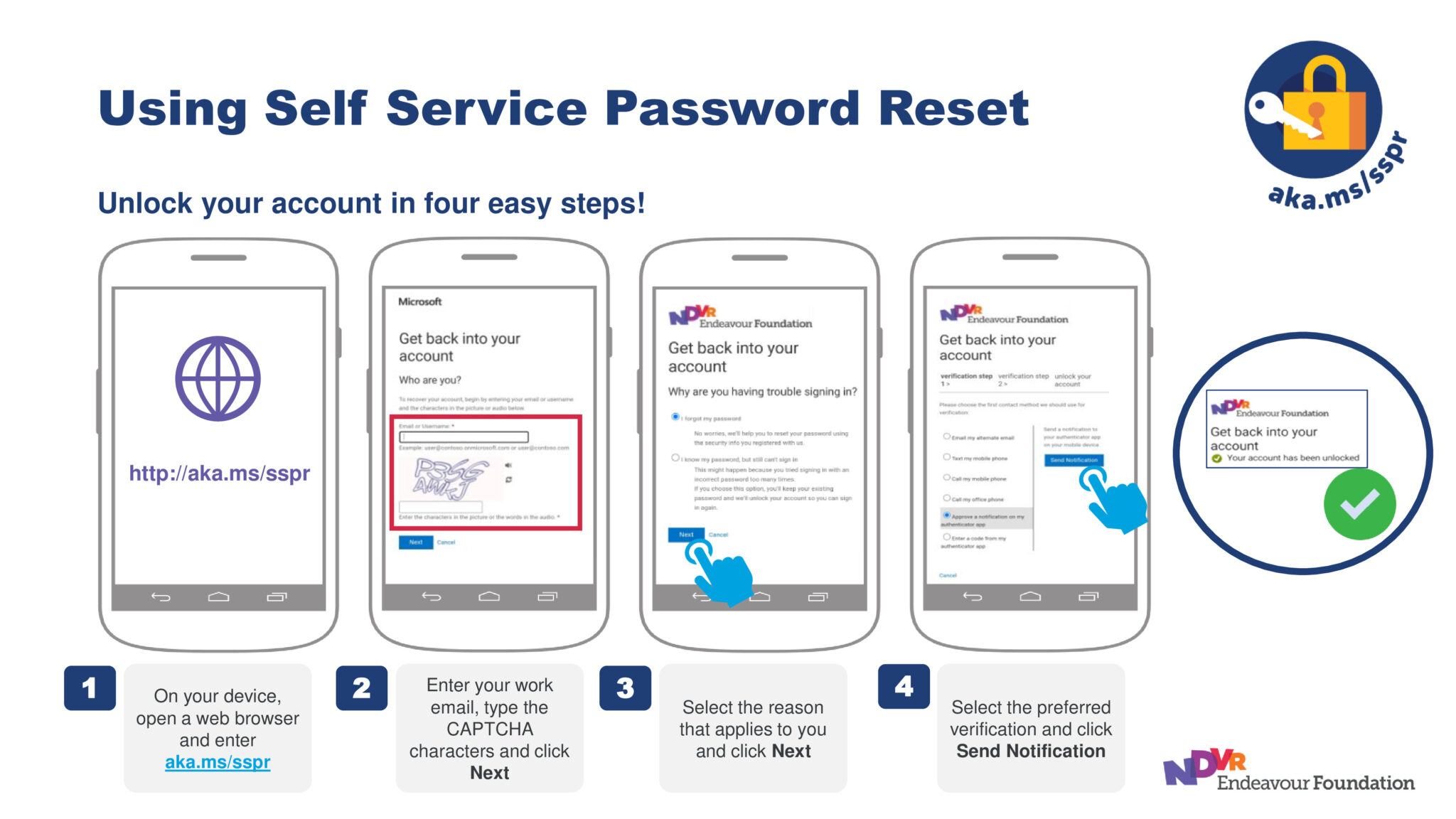
If you have already set up at least two authentication methods, you are now able to reset your own password when needed. Simply:
- Open your web browser on any device with internet
- Type in aka.ms/sspr
- Follow the prompts to reset your password or unlock your account.
Click here to download the Reset Your Password Guide
If you have any questions or issues on resetting your password, contact the #TeamPossible Support Hub or call 1300 742 212 for support.

Frequently Asked Questions
How will Self Service Password Reset (SSPR) help me?
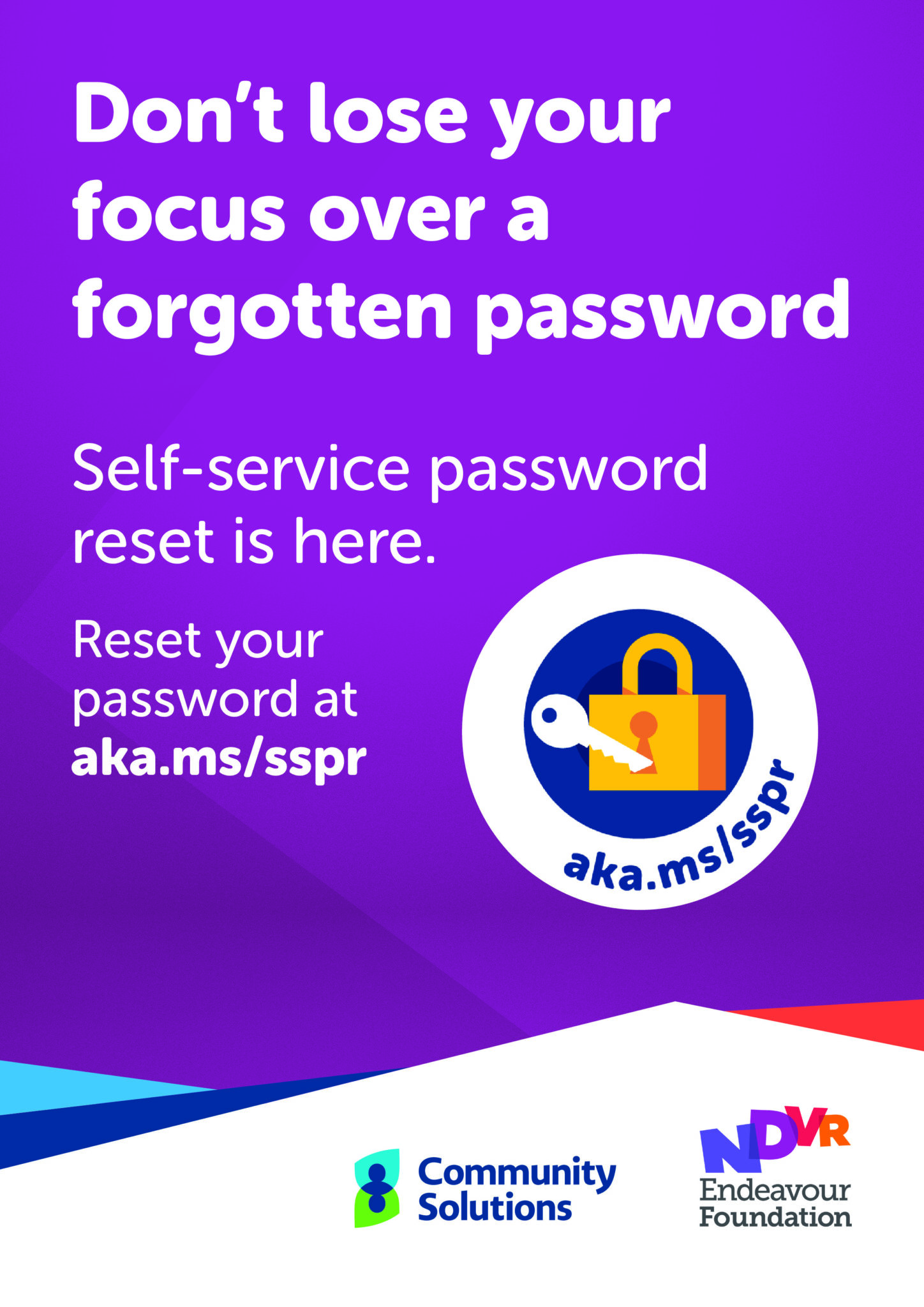
We know it’s important to have the right technology and stay connected to do your job well. An instant password reset lets you quickly get access to maximise your focus on people we support.
If your account is locked or you forget your password, you can follow the SSPR prompts to verify who you are and safely unlock your account yourself. This means less waiting time for you and quicker and easier access to the apps and resources needed to do your job.
What do I need to do?
To use SSPR, you must have a minimum of two methods of authentication to ensure verification that it is you accessing your account and apps. This keeps your information secure and ensures you still have access if one method of authentication is not available to you.
Do I need to use SSPR if my current password is about to expire?
No. If you are not locked out of your account but wish to change or update your password (or have been prompted to change your password as your current password is set to expire), you can do this via your desktop computer using CTRL + ALT + DELETE on your keyboard and clicking Change a password.
You only need to use SSPR if you are locked out of your account, e.g.
- You forgot your password.
- You have used the incorrect password too many times and are locked out.
- Your password expired before you could update it.
I already have multiple authentication methods. Can I reset my own password?
Yes! If you have two methods of authentication and you need to reset your password, you can do it yourself via this link: http://aka.ms/sspr
Save this link to your bookmarks bar on your desktop browser, mobile phone or tablet for quick and easy access to SSPR next time you need to reset your password. If you have any difficulty resetting your password, contact the IT Service Desk on 1300 742 212 for assistance.
How do I add methods of authentication?
If you haven’t already, download and install the Microsoft Authenticator app on your mobile phone (click here for Microsoft Authenticator setup instructions). The Microsoft Authenticator app is one method of authentication most employees will already be using thanks to Connect2Work.
I already have MS Authenticator on my phone. Now what?
Great! You’re halfway there. Now it’s time to add a second method of authentication to your account. Do this by visiting myaccount.microsoft.com and clicking Security Info, oropen the Authenticator app, tap on your work email address, and select Update Security Info.
How do I make MS Authenticator my default method?
To change your default MFA authentication method, refer to the How to install and set up Microsoft Authenticator App as your default MFA authentication method User Guide.
Why is MS Authenticator the preferred default?
Microsoft Authenticator is the fastest way to authenticate who you are. Once it is set up, you don’t need to open the authenticator app. A prompt appears on your phone which simply requires a fingerprint, PIN or facial recognition to authenticate.
Thanks to Connect2Work, all employees should already have access to Microsoft Authenticator. If you do not, please contact the IT Service Desk on 1300 742 212 for assistance.
Why should I use my personal email?
This is a recommended option as you can access your personal email via browser from many devices (mobile phone, tablet, alternate computer). A code is sent via email to your personal inbox to verify who you are. Do not use your work email address as a method of authentication as you will not be able to access this if you are locked out of your account.
Why do I need to set up more than one method of authentication?
Multi-Factor Authentication (MFA) is one of the best methods of protection against cybersecurity threats, as it authenticates that it is you accessing your Endeavour Foundation devices and work applications and provides more security than just a username and password.
The security and safety of your personal and work information and the information of people we support is important to us. Ensuring you have multiple methods of authentication is an easy, effective way of protecting your password and our data. It can help stop malicious hackers from pretending to be you. Security is our top priority, and these measures are in place to protect your account.