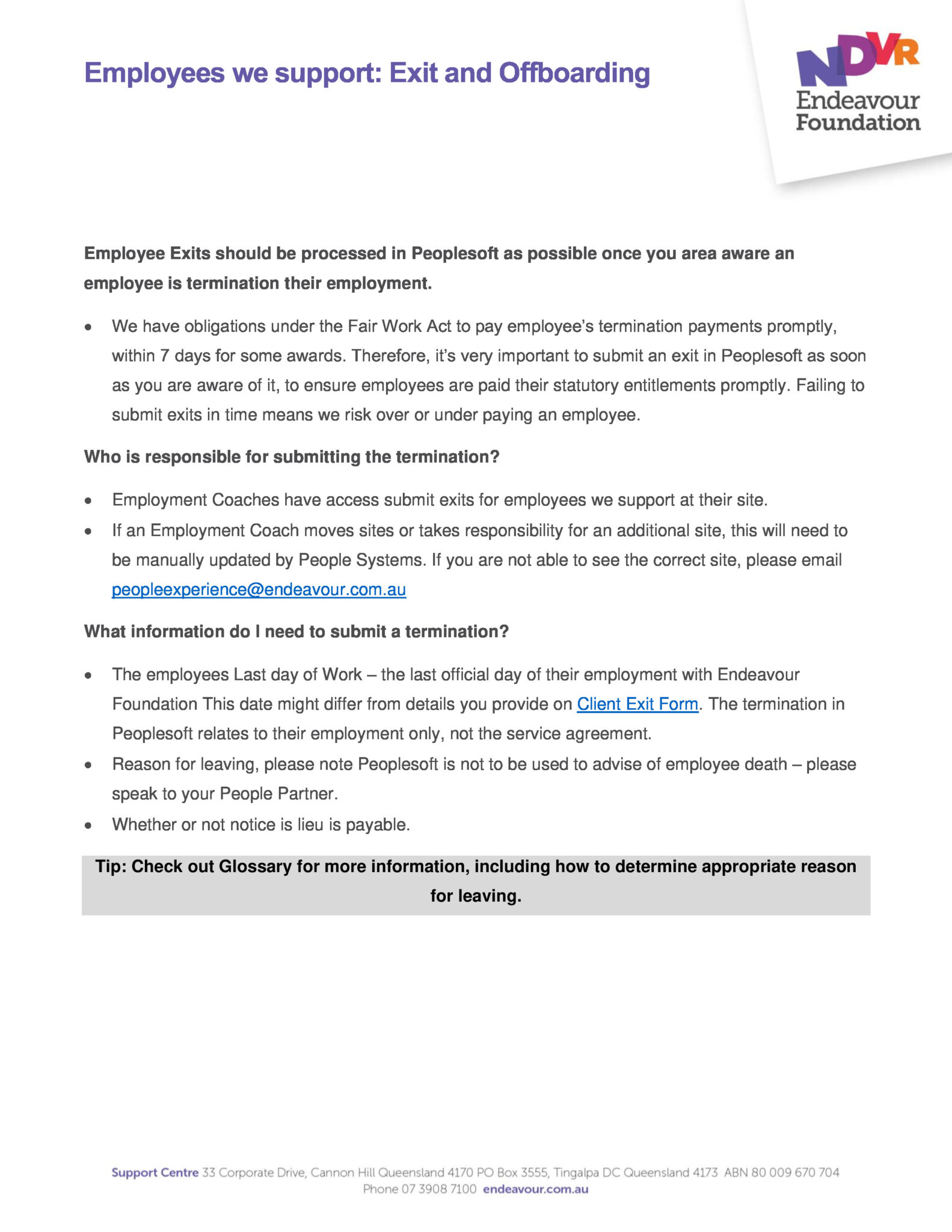
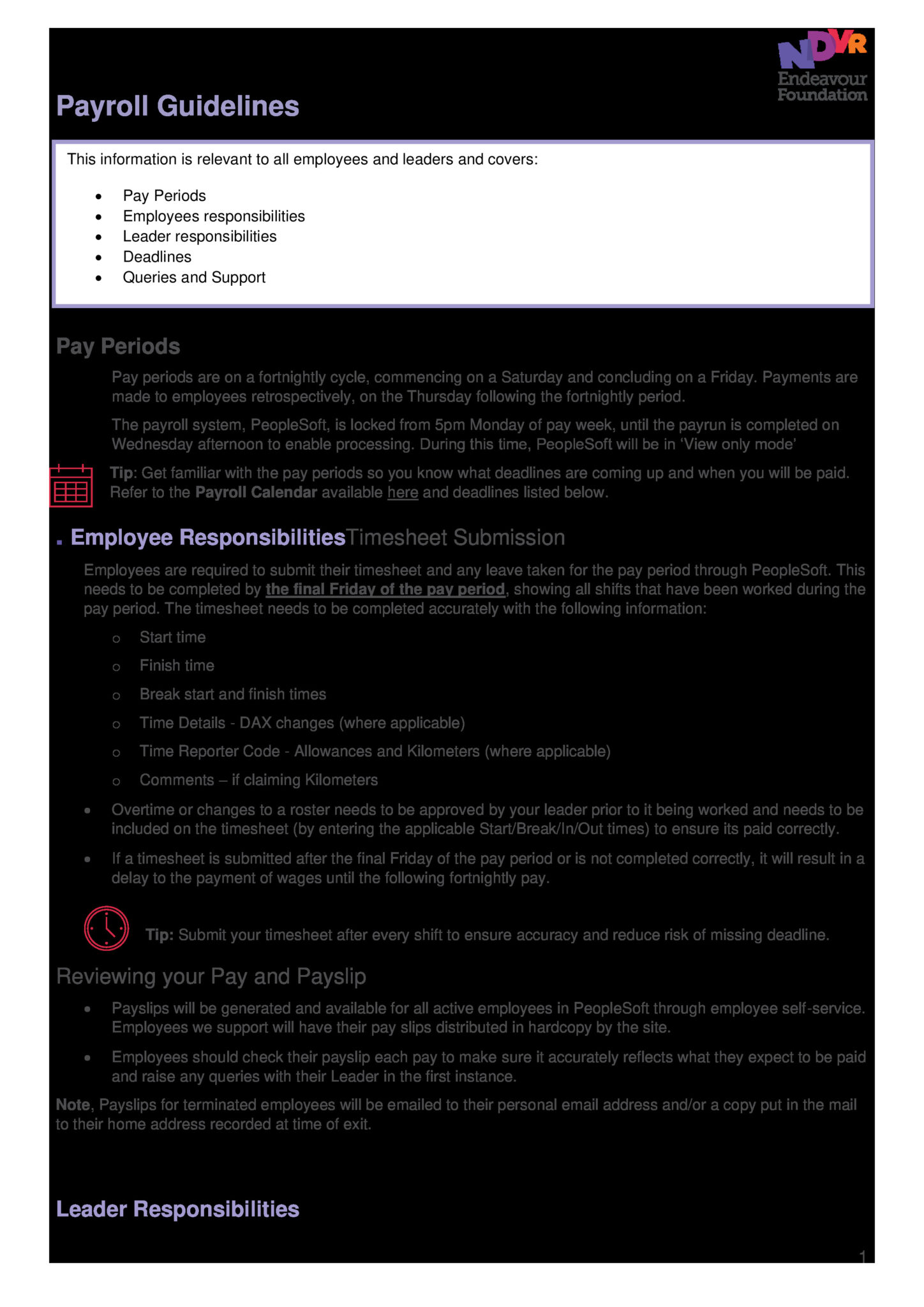
Here is everything you need to know about your pay, from timesheet deadlines to our pay cycle or pay related queries!
Getting paid
Salaries and wages are paid fortnightly via electronic funds transfer to your nominated bank account. Payments are transferred by Thursday following the end of the pay period.
Please ensure you have provided the correct account details. All pay slips are available either through Employee Self Service (ESS) on PeopleSoft or hard copy for our supported employees.
Accessing PeopleSoft
PeopleSoft is our payroll system. You can access payslips and PAYG summaries, apply for leave, report time, upload licenses and certifications, and change bank account details. Check out the resources section on this page for cheat sheets.
You can access PeopleSoft from any device (no Citrix!) at efhris.com.au
For details of individual leave entitlements, please refer to the Leave Procedure on DMS.
Submit all leave through PeopleSoft before taking leave.
Advise your leader ASAP of the time you are on leave.
Leaders review leave applications through PeopleSoft.
Leaders must speak with you if they do not approve leave.
Leaders must review applications against accrued balances.
Managing deductions
Add, update or remove one-off or recurring deductions in PeopleSoft through the ‘Payroll and Banking’ tab. The deduction options are:
One-off deductions (e.g., donations and superannuation)
Recurring deductions (e.g., car, social club, donations, union fees etc)
Use the ‘magnifying glass’ to show the ‘Payment Types’ and Payment Codes for each available deduction. Check page 10 of the PeopleSoft User Guide – Employeesfor more instructions.
Adding a profile photo
Add your headshot to PeopleSoft (displayed in the company directory section) by going to your profile and clicking Update Photo on the top left-hand corner. The photo needs be:
only of you (no friends, pets, objects or celebrities)
taken within the last five years
of your head and shoulders – not a full body
in JPEG format
Timesheets
Timesheets capture the complexity of our organisation and allowances, ensuring you are paid appropriately and our financial position is reported accurately.
Use My Preferences and Quick-Fill to pre-populate your timesheet with standard shifts and finance codes to save you time each fortnight.
My Preferences: Set your timesheet to display your standard shifts based on the last period you entered, or your schedule added by your manager. Located under Action Menu > Time and Labour > Default Form.
Quick-Fill: You can use Setup Quick-Fill to save a personal list of frequently used finance codes for your Location and HR Department. Located under My Time and Leave > Timesheet > Setup Quick-Fill.
If you have any questions about your pay or need help completing your timesheet, contact People and Wellbeing via the #TeamPossible Support Hub or call (07) 3900 5460