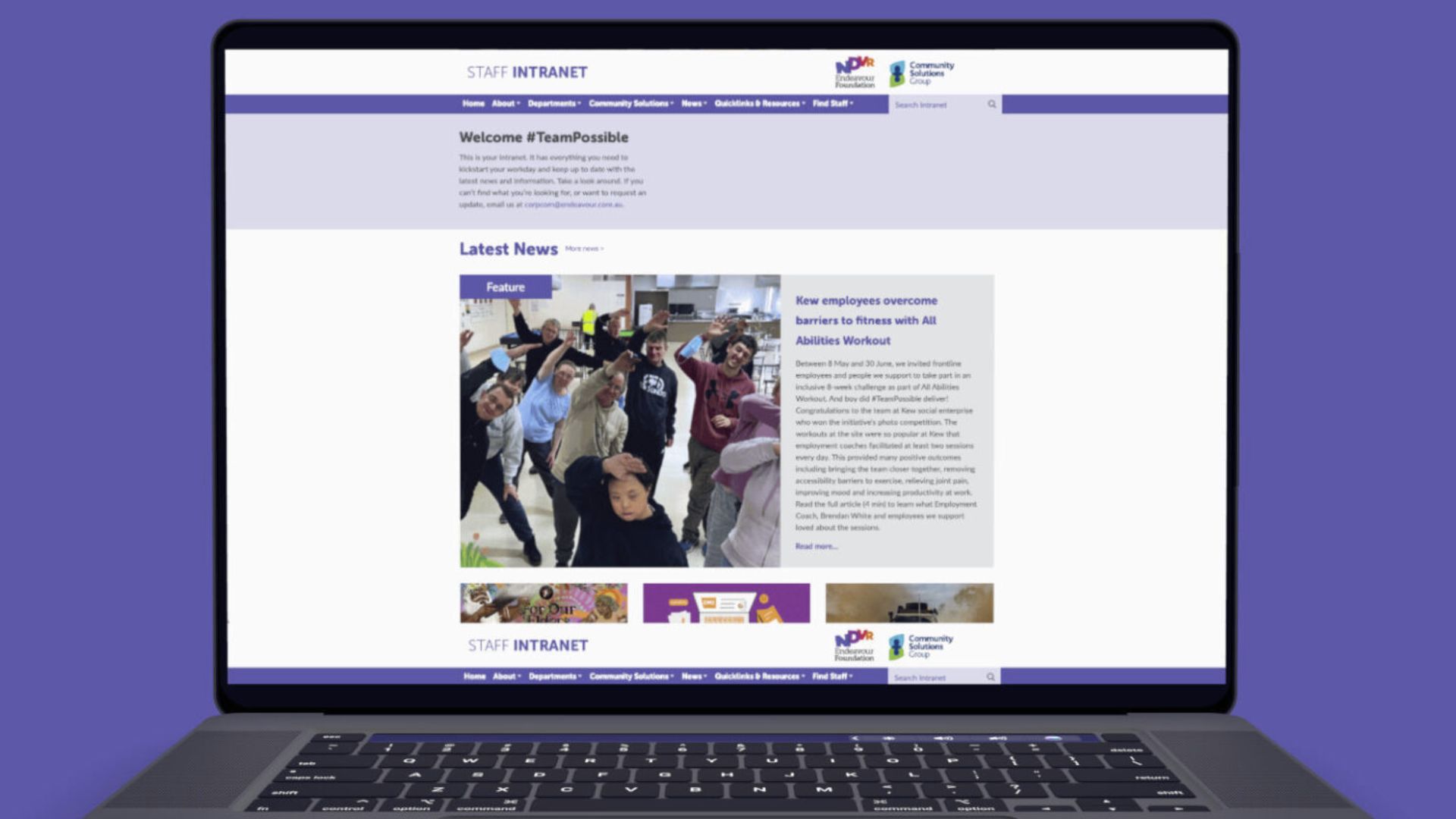
You might notice some changes to our intranet. Never fear, we are here to support you and walk you through the new features.
The updates have been made to not only make the intranet feel more modern in design, but to also be more functional. The biggest noticeable change is that we have removed the right hand column, which allows for a better user experience when we transition to an intranet that is accessible on mobile devices.
There are four new features for you to explore:
- New look and feel
- Quicklinks
- Organisational calendar
- Search
New look and feel
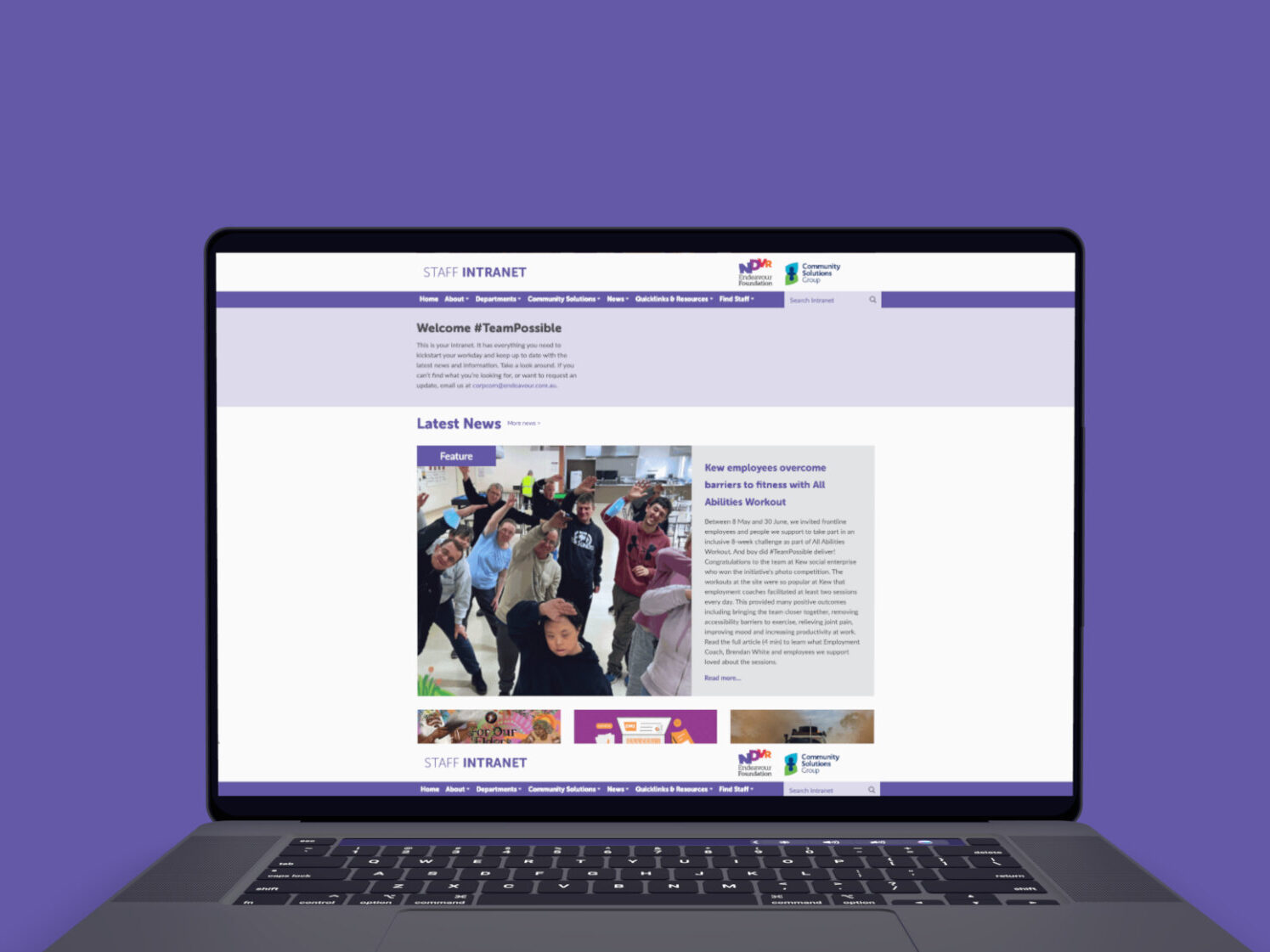
The new home page will be the whole width of your screen, allowing for it to be more streamlined and not so cluttered.
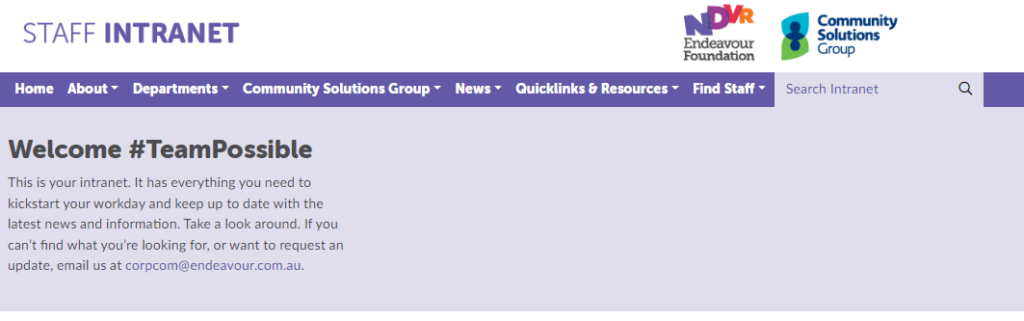
There will be an introduction message with contact details for the communications team, should you wish to ask questions, or make any updates.
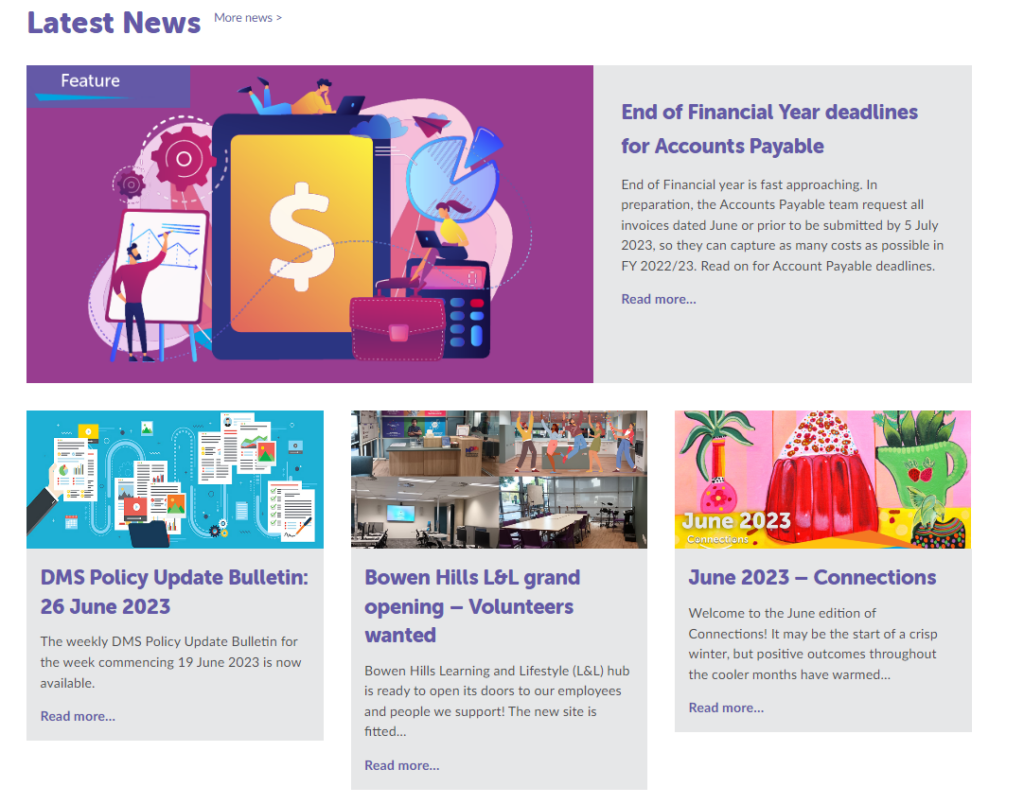
Stories and updates will remain at the top of the pages.
Where have the Quicklinks gone?
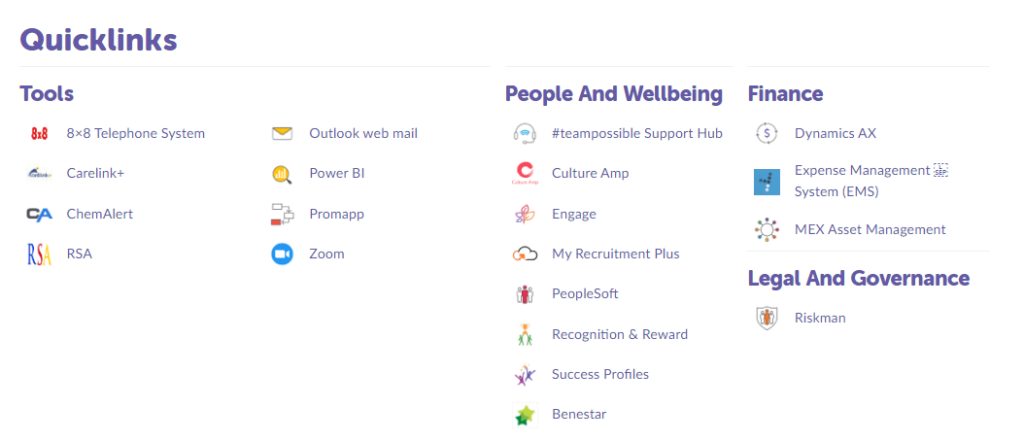
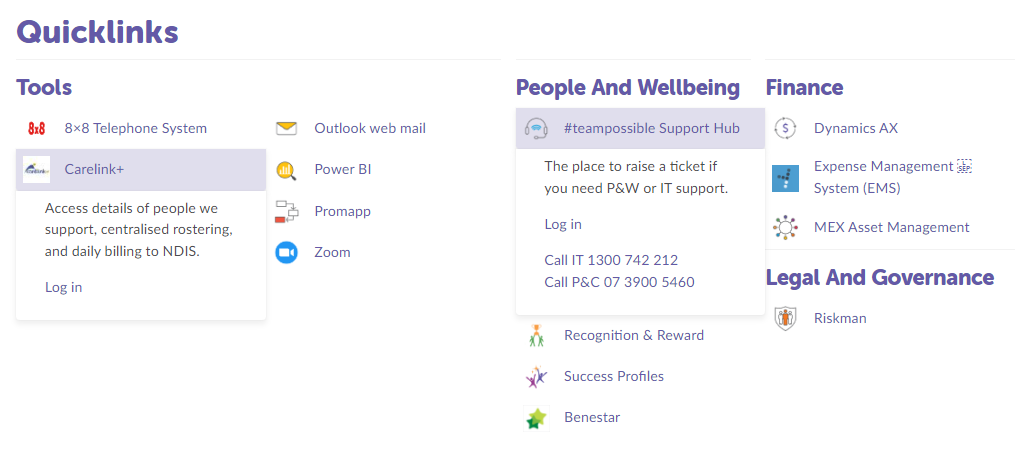
SURPRISE! The Quicklinks now have their own section of the home page and are a much more useful tool.
They are divided into four sections, Tools, People and Wellbeing, Finance and Legal and Governance.
You can click on the name of the Quicklink to get a short description and to be able to access the link to the information that you need.
And now… the Organisational Calendar!
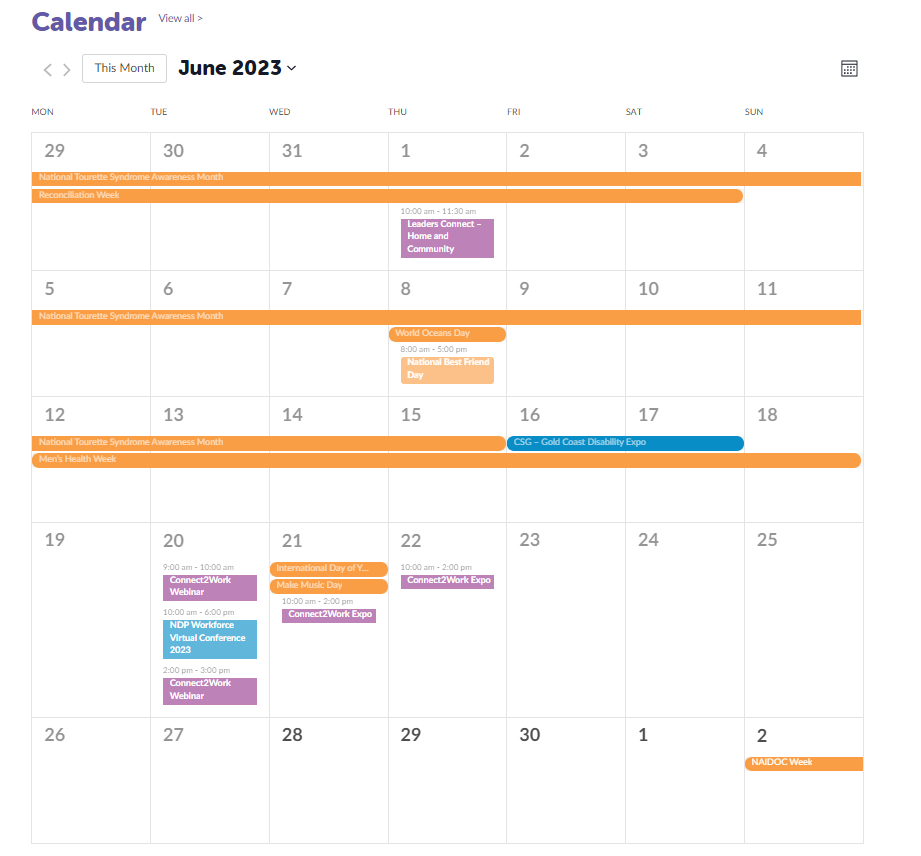
There are five (5) categories for our events:
- Awareness dates: calendar dates that may be relevant to us as an organisation, but no action taken.
- Industry events / conferences: events, such as expos or conferences, that Endeavour Foundation are attending, or have representatives speaking.
- Endeavour Foundation: big organisation events, such as The Great Endeavour Rally.
- Operational: organisational dates of importance, such as Pulse Survey, Annual Remuneration Review.
- Project: for projects that have a wider impact on the organisations, such as Connect2Work.

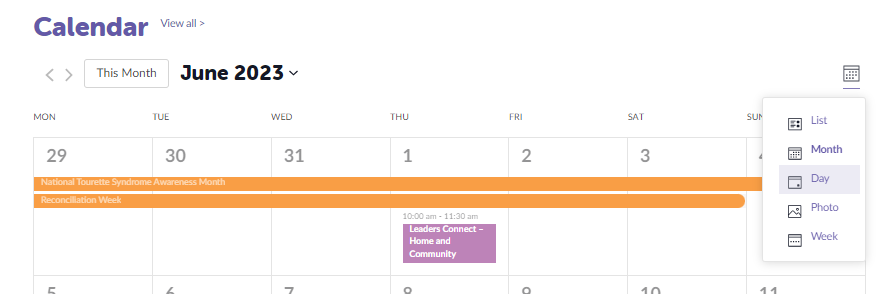
Views
There are multiple ways that you can view the calendar. To navigate to these views, click on the icon on the right-hand side of the page.
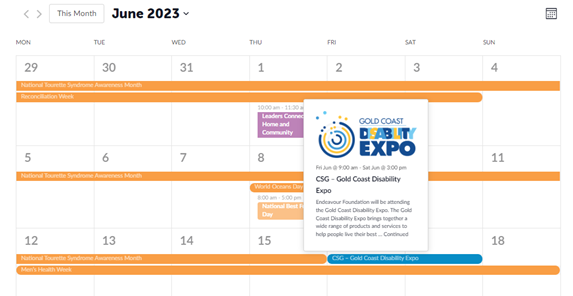
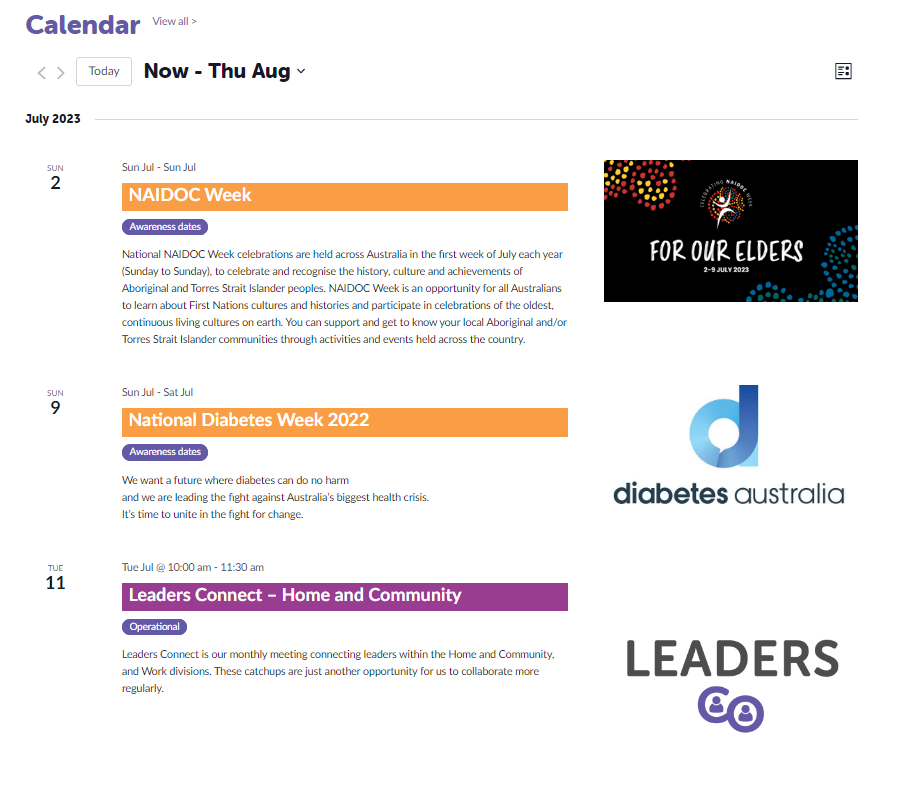
When you hover over the calendar, it will give you a preview of what each event is. You can click on the event, and it will open up with more information.
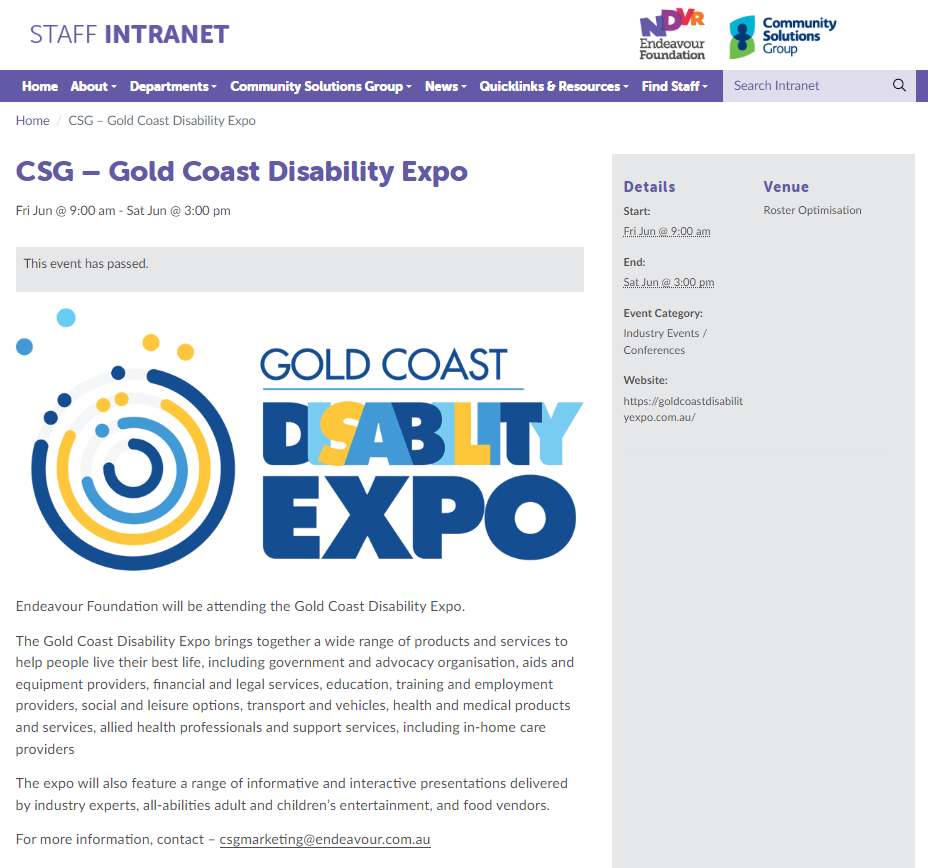
How can you add an event to the calendar?
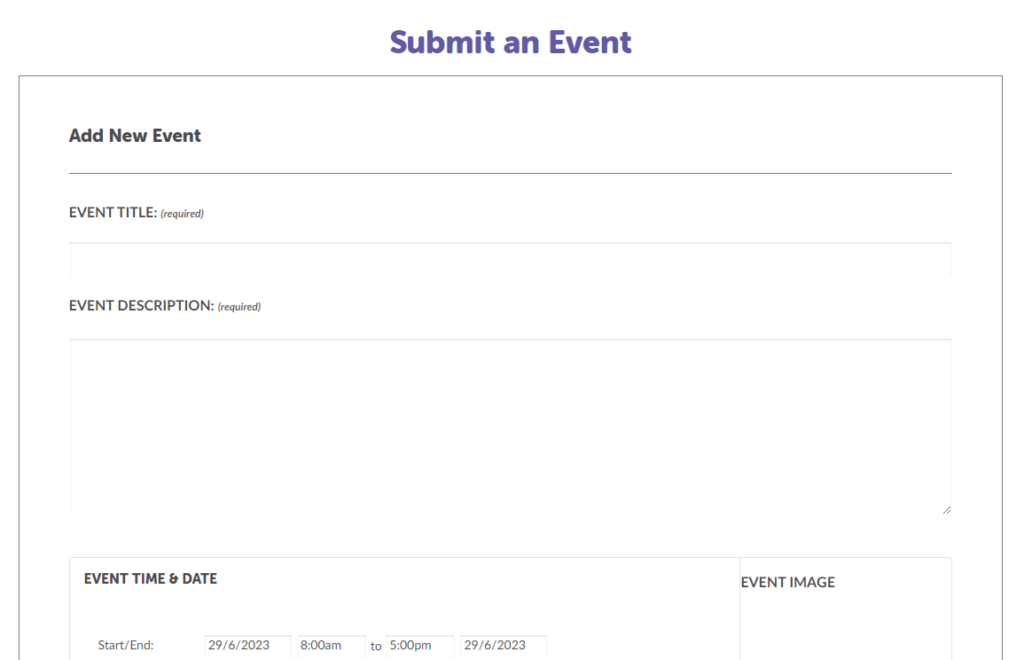
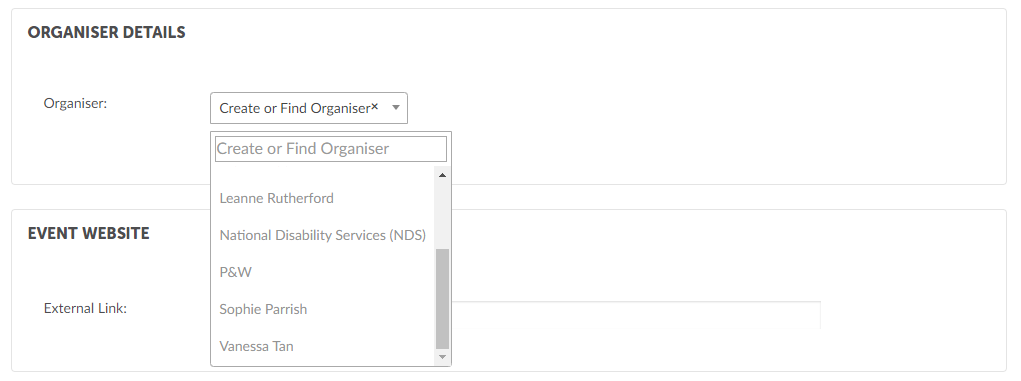
If you go to Calendar on the top menu, the Submit Event, you can complete a simple form. It will ask for details such as the title and description, the time and date, an image, venue and organiser details.
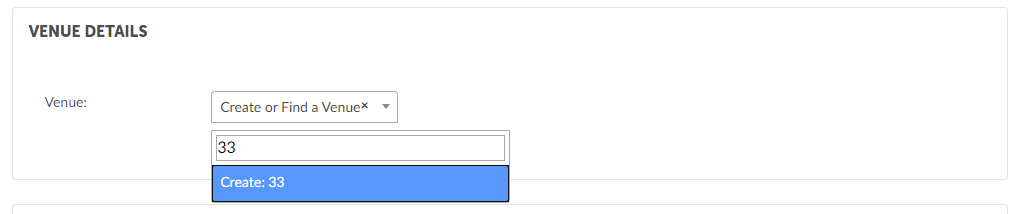
The Venue and Organiser field will give you the opportunity to add a new option if it is not already there.
If there are any fields that you cannot complete, please do not worry, submit the information you have, and we will follow up if we have any questions.
The event will then be submitted to the comms team, who will approve and update on the intranet.
Find me… with the new Search field!
There is a new and improved search function for you to find what you are looking for on the intranet. And if you can’t find it, let us know!
News
View all
Director Election Expression of Interest

Are you in email overload?
Grant funding brings new life to Alex Hills L&L

BRACE proposed changes

Fire Services – Chubb Fire & Security is our new provider