Trusted Network FAQs
Trusted Network FAQs.
We want to make sure data from you, people we support and Endeavour Foundation remain protected. Multi-Factor Authentication (MFA) adds an additional step for all employees to verify their identity via mobile phone when accessing work apps and information. It is one of the most secure methods of protection against cyber threats.
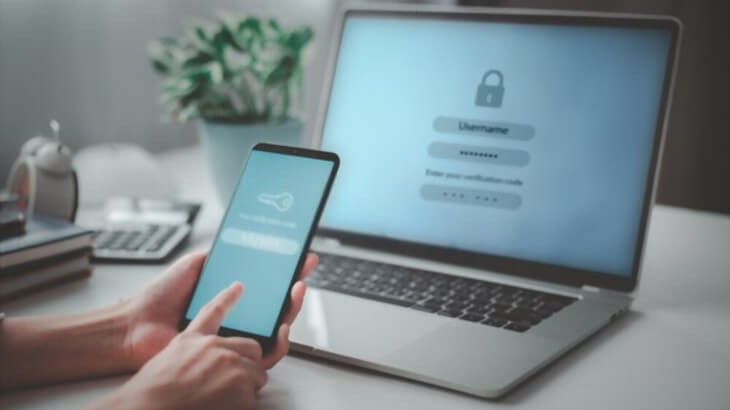
We want to make sure data from you, people we support and Endeavour Foundation remain protected. Multi-Factor Authentication (MFA) adds an additional step for all employees to verify their identity via mobile phone when accessing work apps and information. It is one of the most secure methods of protection against cyber threats.
Set up your MFA using the guides in the resources section below!
All Endeavour Foundation sites are on Trusted Networks, which are designed to make it easier for you to access our programs and system. You will not be prompted for authentication when logging in at any Trusted Network, however MFA will continue working in the background to protect you.
If you do receive a prompt for MFA, please proceed with your login information and contact the #TeamPossible Support Hub or call 1300 742 212 for support. For more information please view the Trusted Network FAQs.
You will only be required to authenticate when you access certain apps, not when you log on to your device. Most apps on the Endeavour Foundation network will require authentication to access.
Currently, MES, SharePoint and Pro-Master do NOT require you to authenticate when you are logging on.