What is EMS?
It’s a quicker and easier system to use and solves…
Our Expense Management System is a secure mobile system that helps us manage expenses. Access the EMS on your phone or computer, it's simple!

The EMS is a secure mobile system that helps us manage expenses. You can access the EMS on your phone or computer, and it replaces KOFAX coding slips and the Residential Service Application (RSA). It’s a faster and easier system to use!
Check out our Engage Training modules in the resources section below to get started with EMS!
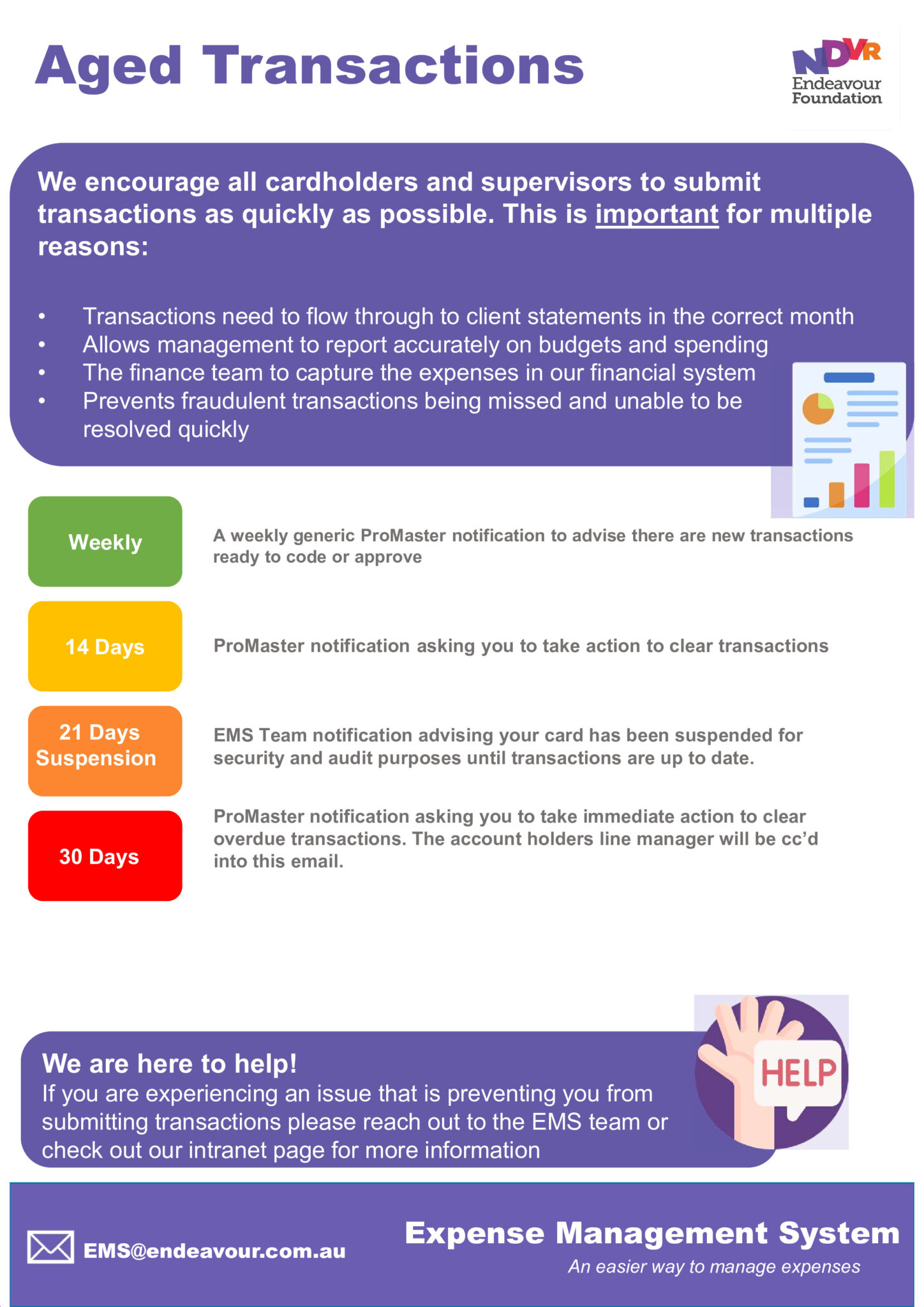
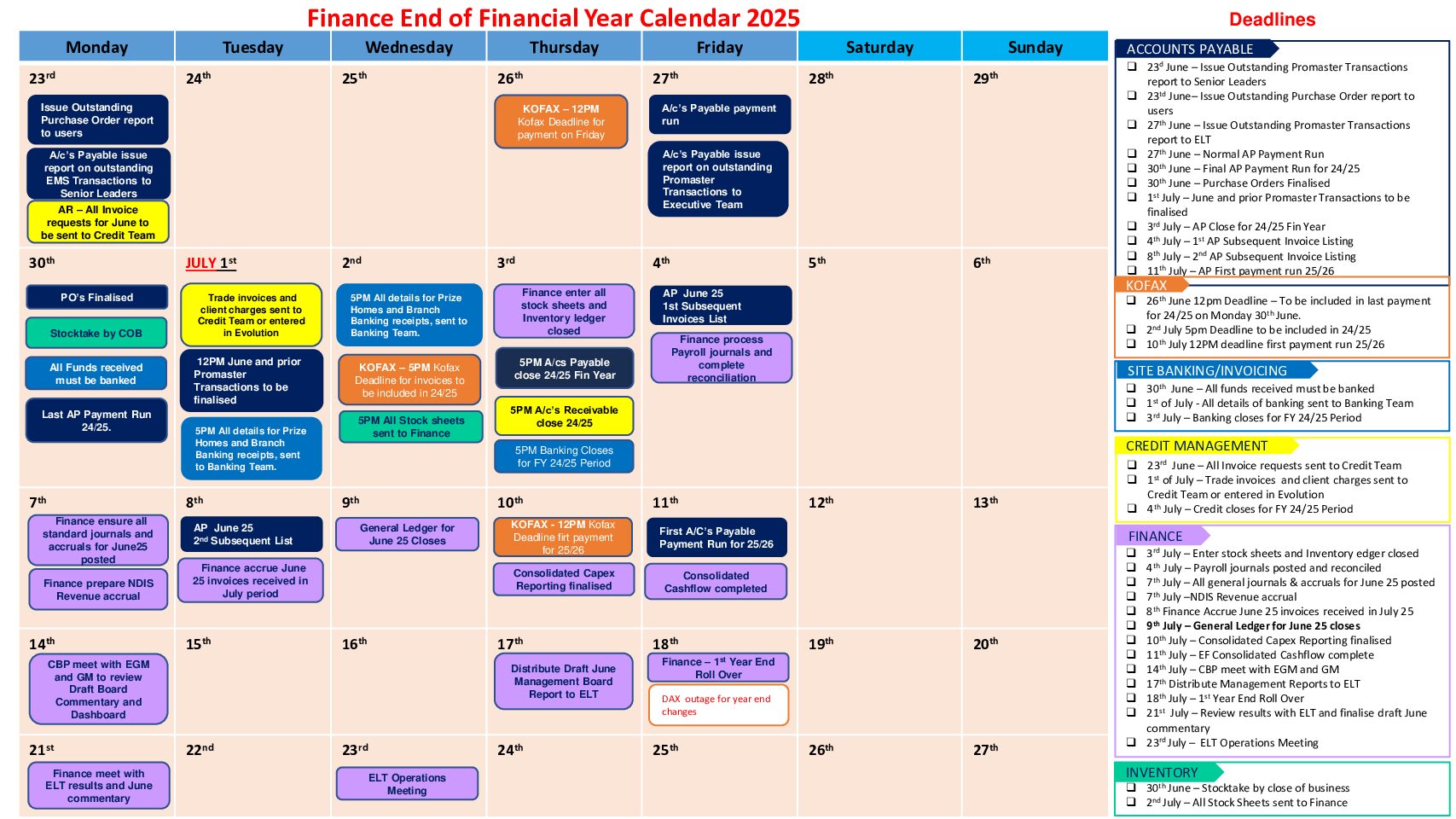
As we approach EOFY, it’s important to make sure all costs from the 2024 – 2025 period are processed on time.
Important deadlines:
If you have any questions or need help, please speak to your line manager or:
Contact Accounts Payable at [email protected]

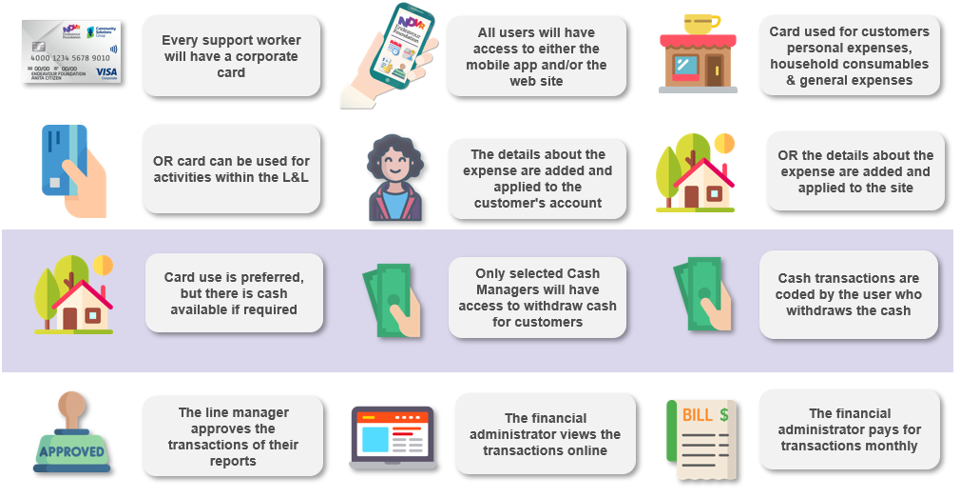
The EMS will be use across the organisation, for:
The ExpenseMe app can be accessed via the Connect2Work platform in Company Portal.
Connect2Work is installed on your mobile to provide safe and secure access to all Endeavour Foundation applications.
Connecting a device to Endeavour Foundation allows you to do your job while on the go, giving you time back to do more of what matters.
If you connect your own device, you receive an extra $15 in your pay each fortnight. Find out how to connect on our Connect2Work Intranet Page

To arrange a corporate card, complete the QF 6730.01 Employee Agreement Corporate Credit Card form and send to [email protected] to be processed. The EMS team will then send you an email with instructions with next steps.


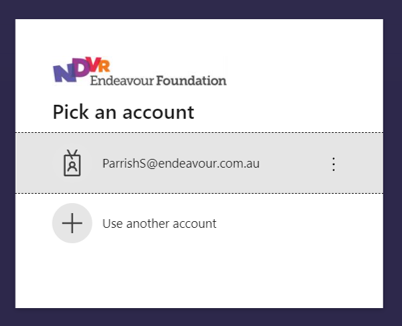
Go to https://secure.inlogik.com/endeavour and click on your email address to sign in. If it is missing, type in your full email address.
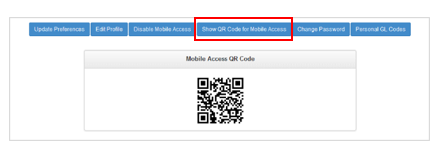
Click your name in the top right corner and click Profiles. Scroll down and click Show QR Code for Mobile Access.
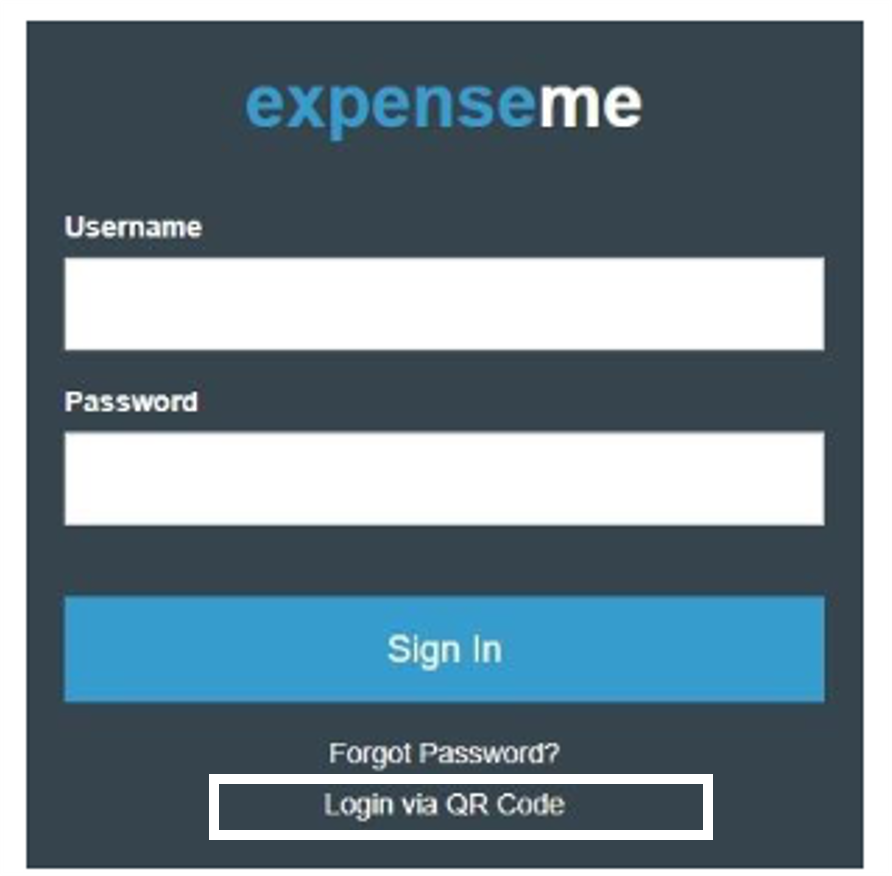
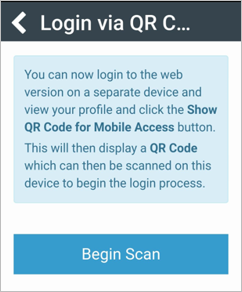
Open the ExpenseMe app on your phone and click Login via QR code. Click Begin Scan and scan the QR code provided on your computer screen. Select Continue.
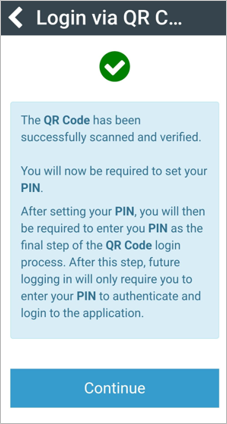
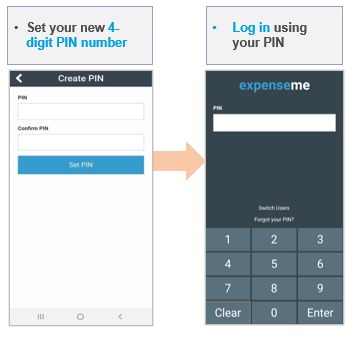
Set up your 4-digit PIN to complete the setup process.
No. Endeavour Foundation owns and is responsible for the card.
As the cardholder, please contact ANZ immediately on 1800 032 481. ANZ will cancel the card and a replacement card will be sent within 3-5 days.
A replacement card can take between 3-5 business days
Always use credit.
Yes. Add the card as you would normally and follow the prompts.
No. Never give your card or PIN to another person.
You can change your PIN at any ANZ ATM. If you have forgotten your PIN, take your ID into a branch to reset it.
Only Home Site Supervisors and Site Managers have access to cash. Any requests for cash access can be made via the EMS team.
Call ANZ on 1800 032 481 and they will advise.
Your security code is your PeopleSoft ID (or Employee ID number on your payslip).