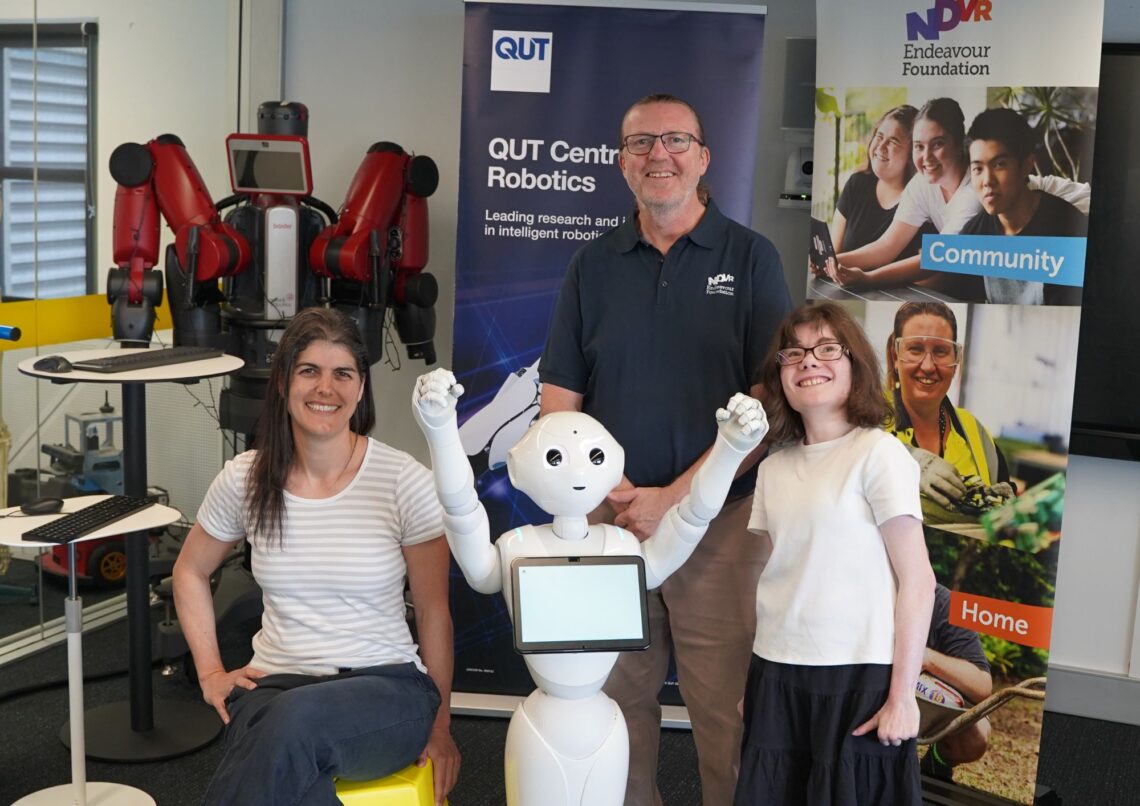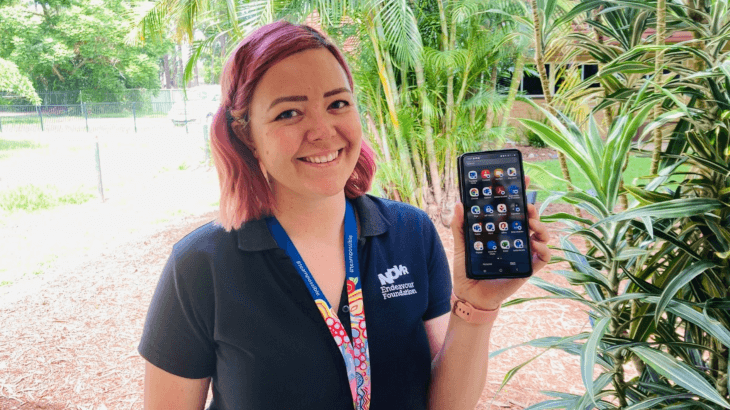
Mobiles have changed the way we live. We want to connect at work simply. Now it’s possible!
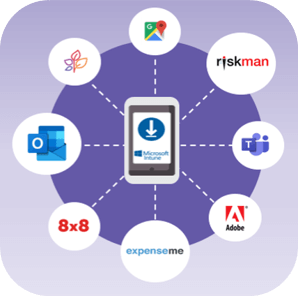
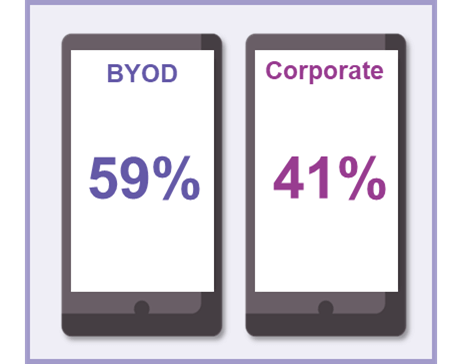
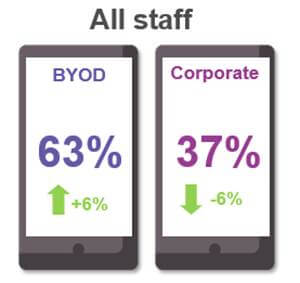
You can securely access Endeavour Foundation apps and information on your own device OR a device provided by Endeavour Foundation, without having to use a computer or laptop.
An app called the Microsoft Intune Company Portal will ensure your private information and personal apps are not visible to Endeavour Foundation, while protecting company data when staff are accessing Endeavour Foundation apps.
Why should I connect to work?
Connect2Work will allow you to:
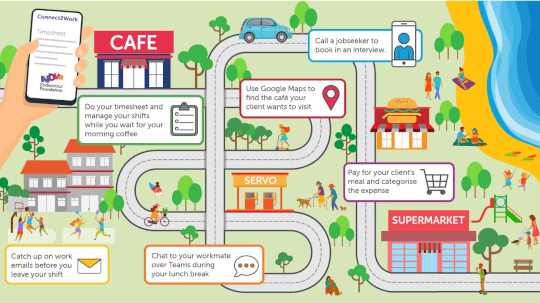
- Access work related apps like MS Teams, Outlook and Peoplesoft
- Privately and easily access work information from your phone.
- Better connect with your leader and the organisation while on the go
- Get an extra $30 a month in your pay if you use your own device!

Is it secure?
Yes! We understand how important privacy is to you, so it is our top priority to ensure we provide the best protection for both your personal information and our company data. Below is what Endeavour Foundation can and cannot see. Please remember, Endeavour Foundation will never be able to access your personal information on your phone, including messages, photos, calls, browsers or email.
 |
 |
|---|---|
| Cannot view browsing history | Can view model serial number and operating system |
| Cannot see your personal email, documents, contacts or calendar | Can identify your device by name |
| Cannot access your passwords | Can view information collected by the corporate apps and networks |
| Cannot view, edit or delete any photos | Remove corporate data from a lost or stolen device |
| Cannot see the location of a personal device | On corporate devices, Endeavour Foundation can see the phone number, all applications installed and the location of any lost device |
| Cannot view any of your personal applications |
Top Tips
Top Tip One: ‘Keeping Work-Life Balance in check while using Connect2Work’
While Connect2Work gives us the ability to stay connected, respond to emails and manage our day-to-day tasks on the go when at work, we all need to be able to ‘switch off’ from work outside of work hours.
Did you know you can simply turn off your work notifications after you finish for the day? You can customise and easily manage what and how notifications appear.
For Android users
Follow these instructions to turn off your work profile at the end of the day:
- Slide down from the top of the screen to access your ‘quick access’ panel
- Tap the ‘Work Apps’ icon to turn off the work profile
- Done! This will stop any work notifications and disable the use of work apps until you turn it back on at the start of your next work day.
For Apple users
Follow these instructions to manage notifications for work apps.
- Go to Settings à Focus
- Tap Work à Set Up
- Add Apps
- Choose ‘Silence Notifications From’
- Tap Add Schedule
- Set a schedule for notifications to be turned off between your shift times or location.
Top Tip Two: ‘Making sure your mobile device remains compliant for Connect2Work’
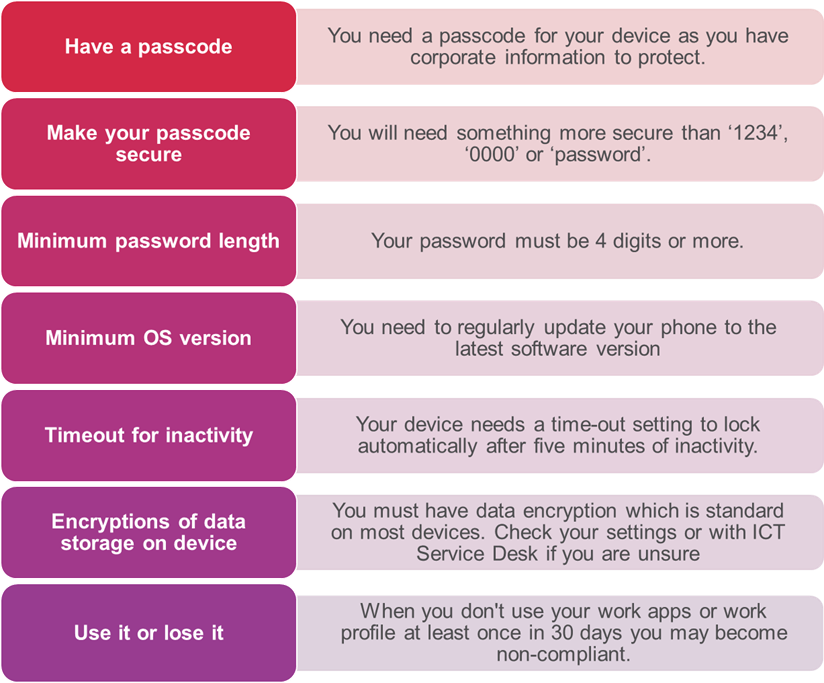
It’s important your mobile device continues to meet the necessary security requirements to keep both your information and corporate data safe.
If a device becomes non-compliant, fortnightly compensation may be put on hold and if it remains non-compliant for over 30 days the Connect2Work platform may be removed from a device altogether.
Here’s some easy steps you can follow to ensure your device remains compliant and stays secure!
How will I know if my device becomes non-compliant?
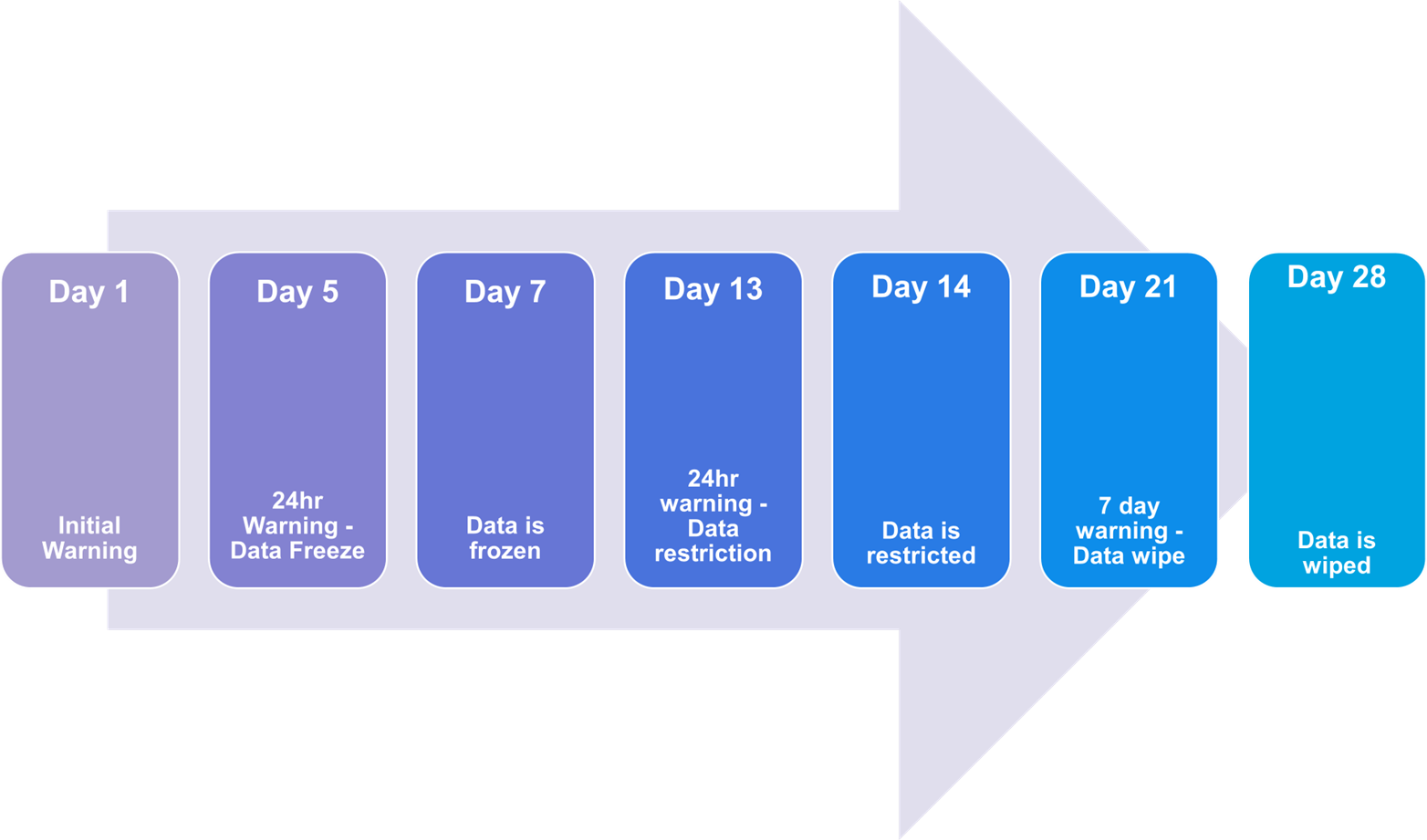
If your device becomes non-compliant, you will receive a mix of emails and push notifications at the following intervals:
- One week: Apps will stop showing updated information
- Two weeks: Device will be locked out of Connect2Work apps
- 30 days: Connect2Work will be removed from your device and you will need to re-enrol to access work apps again once your device is compliant
Top Tip 3: ‘New apps for Connect2Work’
Take a look at two fantastic new applications recently added to Connect2Work.
Use the #TeamPossible Support Hub App to:
- Raise tickets for support from the ICT Service Desk
- Raise tickets for support from the People & Wellbeing Team
- Request hardware
- Follow up on open requests
- Report security issues
- Read self-help articles
- Process approvals (for leaders
Use the Culture Amp App to:

- Prepare for upcoming 1:1’s
- Perform your self-reflections
- Set and update your goals
- Create development plans
- Participate and create surveys
Request an App to be added to Connect2Work
Visit #TeamPossible Support Hub requests – applications to log a quick, new mobile application request for the app you’d like to see included in the Connect2Work platform.
Top Tip 4: ‘Printing from a mobile device’
Have you ever wanted to print something from your phone to the office printer? Well now you can! Set up the uniFLOW app on Connect2Work and you can easily print from your mobile device to any Endeavour Foundation printer. Follow the steps below:
1. Download the uniFLOW app and click ‘Next’
2. Log in using ‘Manual Log in’
3. Enter the URL endeavour-foundation.au.unflowonline.com
4. Tap Microsoft and login with your Endeavour Foundation credentials
5. Go back in the app and click ‘Print’ to find your file
6. Update any printer settings and click ‘Add to Queue’
Click here for image based step-by-step instructions.
Progress Update
2 August 2023
17 April 2023
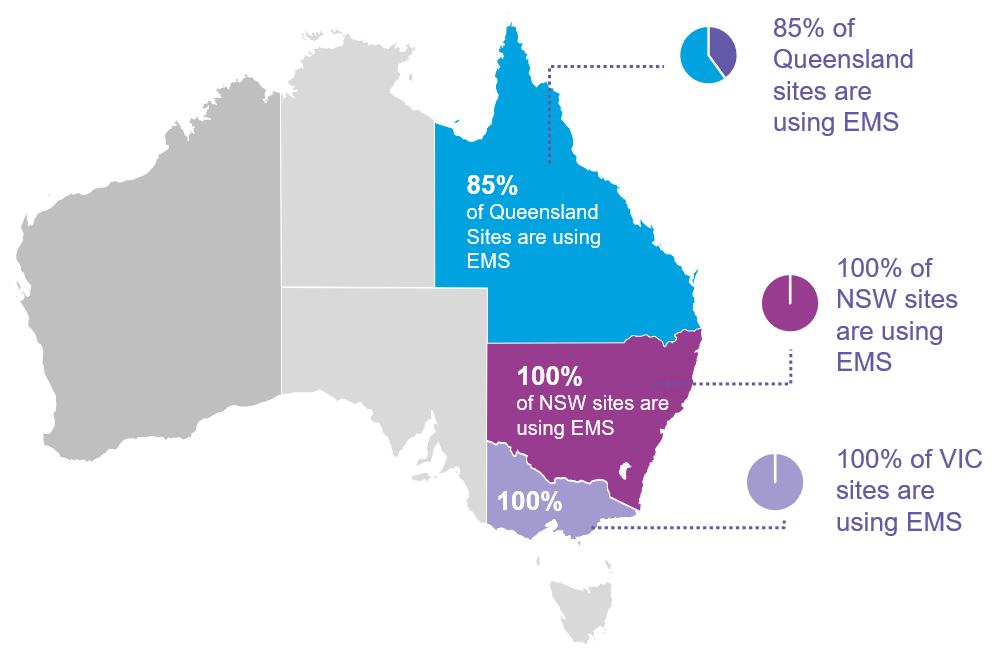
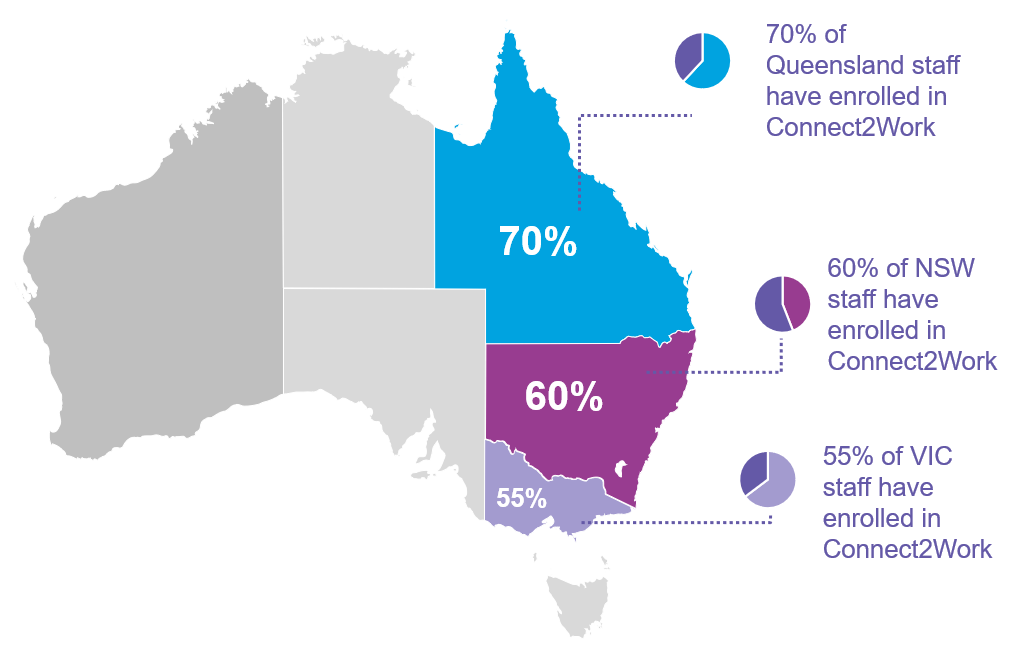
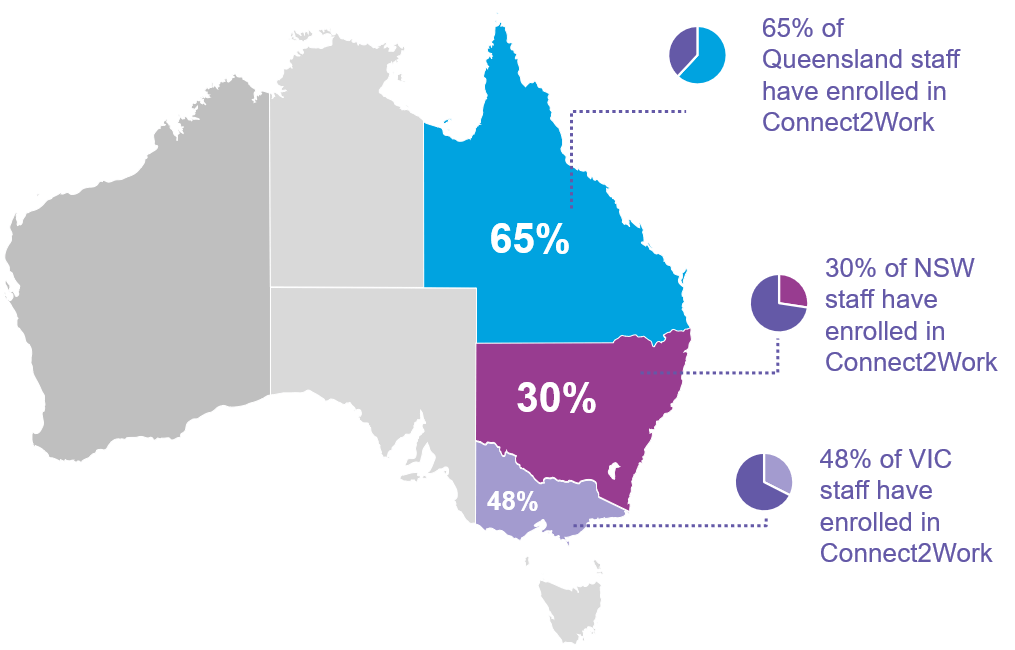
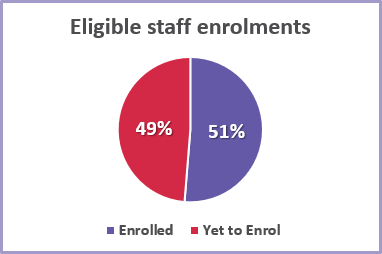
Previous updates
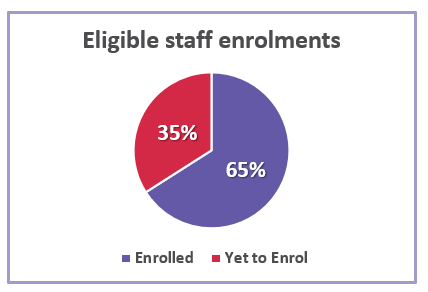
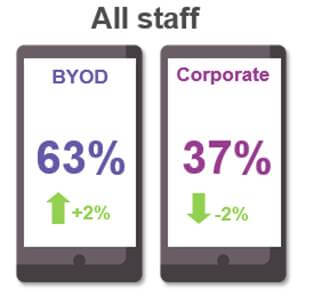
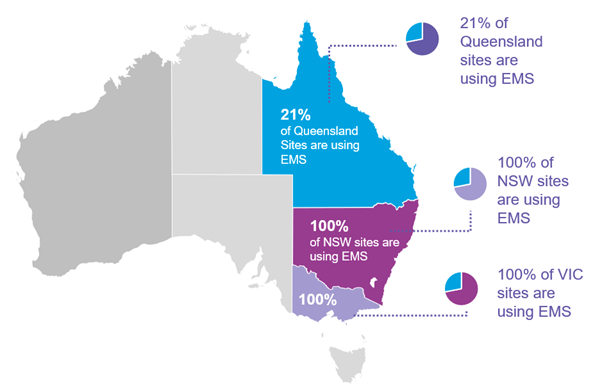
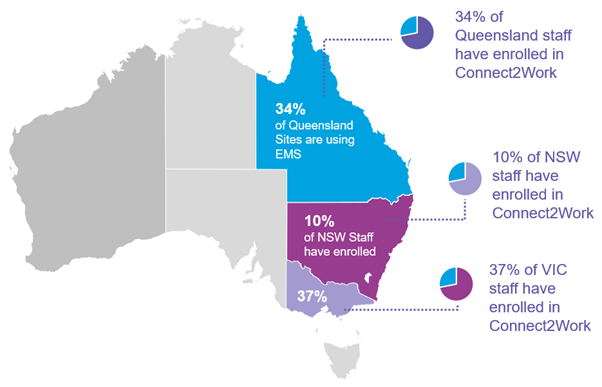
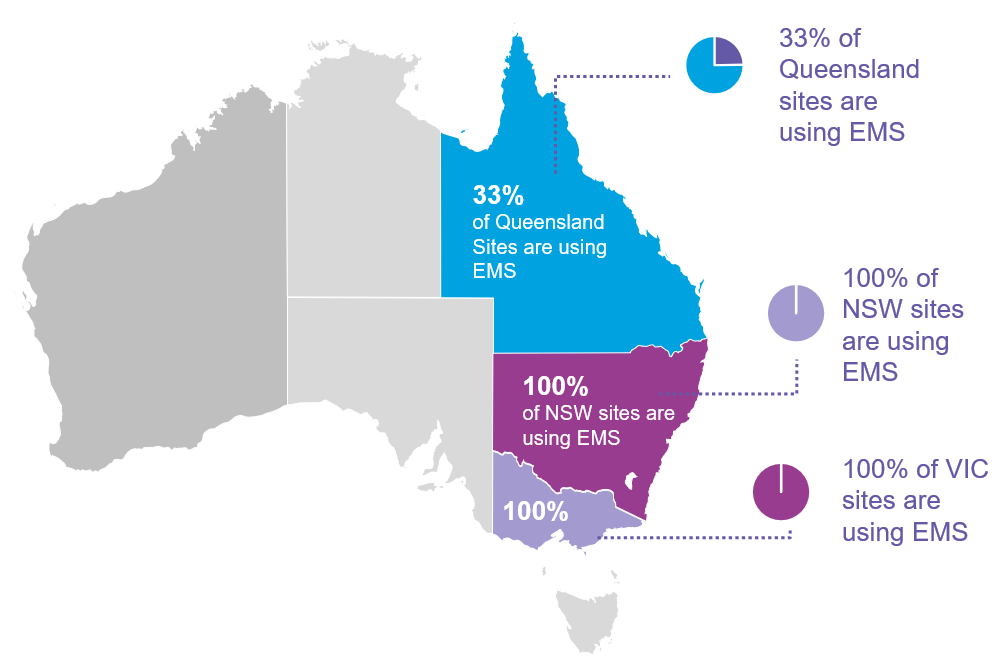
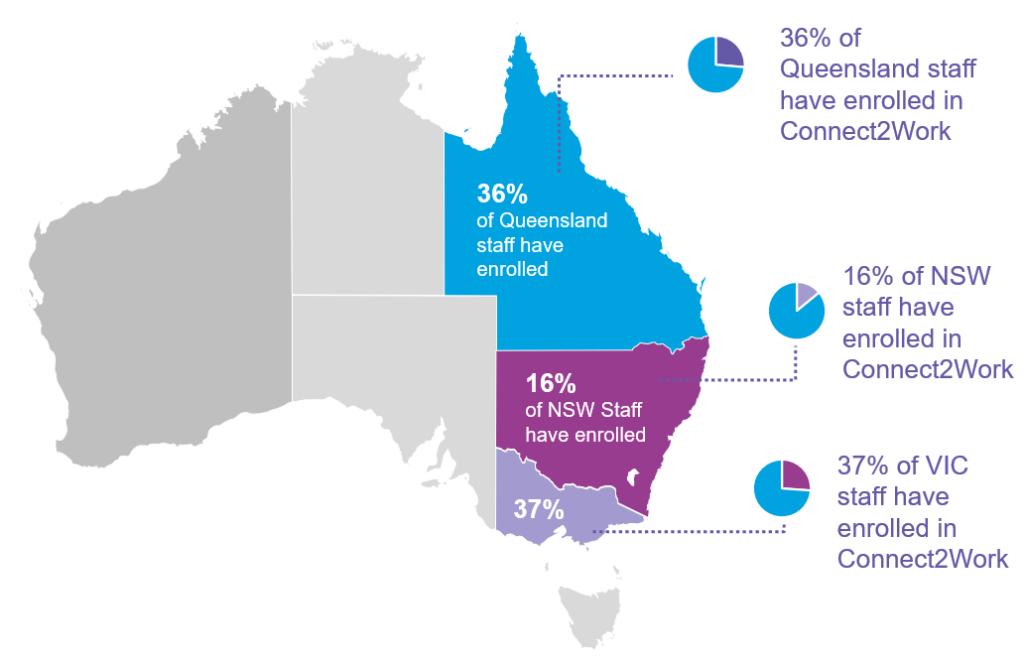
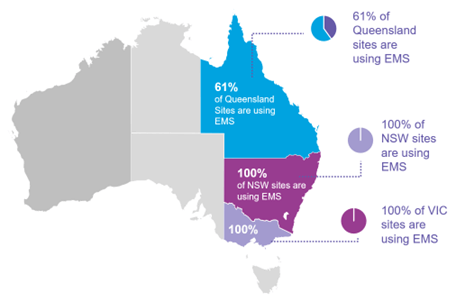
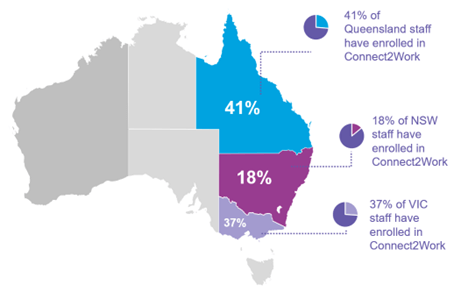
We’ve made some excellent progress rolling out Connect2Work across the country in 2022. Here’s how we’re tracking in 2023:
- North Queensland Home & Community sites are now live and using both Connect2Work and EMS!
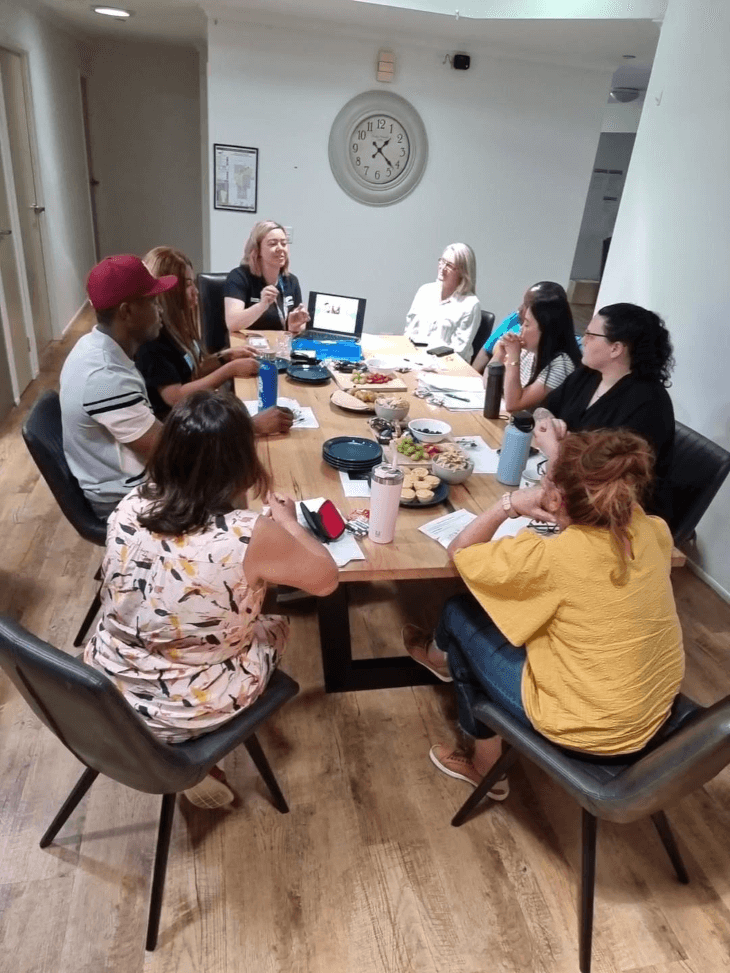
- Brisbane and Gold Coast Home & Community staff have been enrolling their phones to Connect2Work over the past few weeks and are now being trained to use the EMS system.
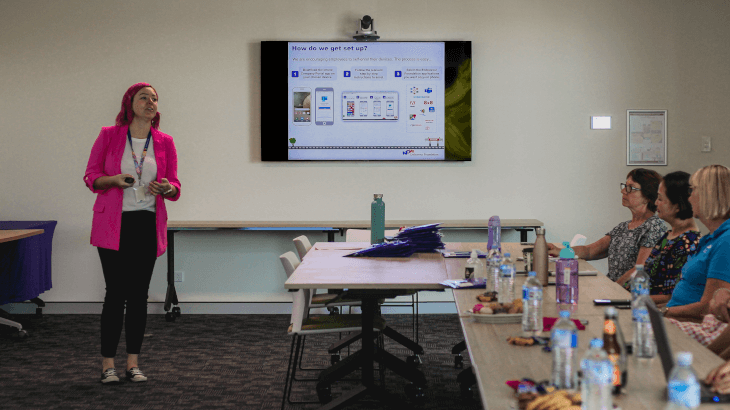
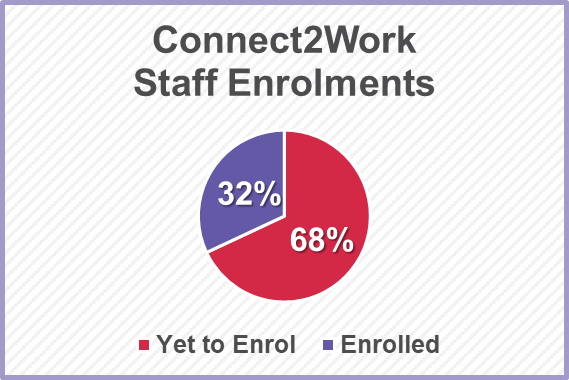
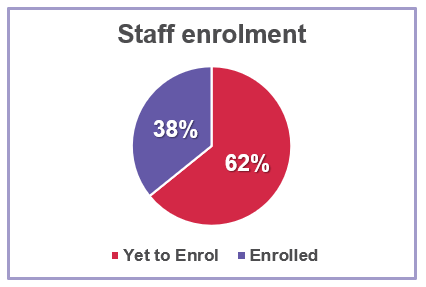
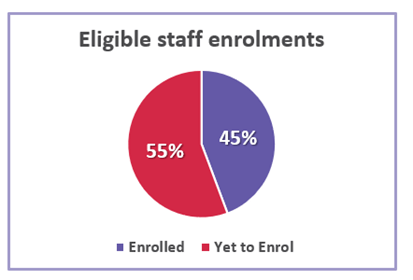
Let’s get enrolments to 100%! Anyone can enrol their own device. Get started in three simple steps.
- Wide Bay is our next region to roll out and have already begun enrolling staff phones to Connect2Work and starting preparations for EMS to Go Live.
News
View all
Director Election Expression of Interest
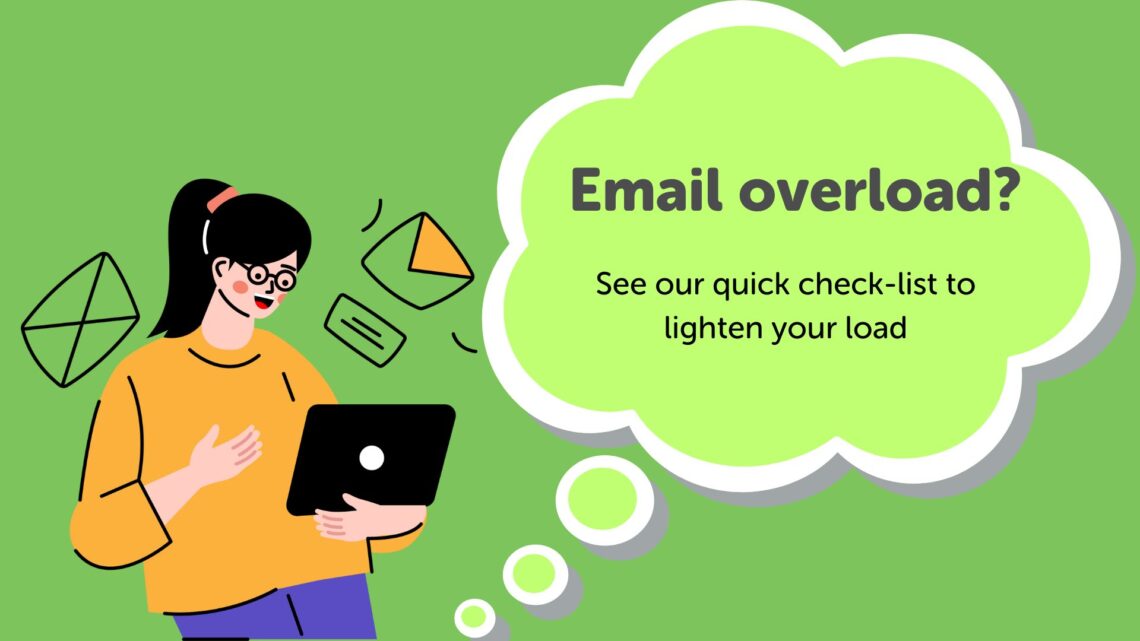
Are you in email overload?

Grant funding brings new life to Alex Hills L&L

BRACE proposed changes

Fire Services – Chubb Fire & Security is our new provider